Introduction
-
R can be regarded as an implementation of the S language which was developed at Bell Laboratories
-
Expression-language, case sensitive
-
Special symbols allowed are . (dot) and _ (underscore)
-
Variable Name must start with ‘.’ or a letter, and if it starts with ‘.’ the second character must not be a digit. Names are effectively unlimited in length.
-
Semicolon or newline separate commands
-
Execute commands stored in a R file
source("commands.R") -
Output data to an external file
sink("record.lis") # writes the output to record.lis instead of printing it to stdout -
objects()orls()returns the object currently stored in the session -
rm()can be used to remove an objectrm(list = ls()) # remove every object present in memory
Packages
library()function (with no args) returns list of installed packagesgetOption("defaultPackages")returns the list of packages automatically loaded during startupchooseCRANmirror()function provides a menu to choose a mirrorsetRepositories()function provides a menu to select the repos you want to useupdate.packages()simply updates all existing packagessearch()returns list of loaded packages
install.packages("pacman") # install the package manager
# install.packages(c("pkg1", "pkg2")) # install multiple packages at once

library(pacman) # import without a conformation message, not known
require(pacman) # import with a confirmation message

pacman::p_load(pacman, ggplot2) # alternative way of loading packages

# detach(ggplot2, unload=TRUE) # detach a package, and unload the namespace
p_unload(ggplot2) # unload package/s
p_unload(all) # unload all packages

# remove.packages(c("pkg1", "pkg2")) # remove multiple packages at once
Assignment
x <- c(5, 4, 3, 2, 1)
# c(5, 4, 3, 2, 1) -> x # alternative
y <- c(1, 2, 3, 4, 5)
assign("z", c(10, 20, 30))
Data Types
- String
paste("hello, ", name, sep="") # concatinate multiple values # instead of setting sep="", you can just use paste0() - Character
- Integer
- Double
- Array
lt <- 1:10 # create a list 'lt' with number from 1 to 10
abs(lt) # applies abs() to every element of lt and prints it

lt * 2 # returns a new vector with each element multiplied by 2

c(lt, 0, lt) -> js # stores a vector consisiting of the elements of lt, then 0 and again the elements of lt
Type conversion
as.integer(),as.double(),as.character()
x <- "10" # 10 is a string here
as.integer(x) # returns x as integer
Special
Infand-Infrepresent infinite valuesNArepresent Not AvailableNaNmeans Not a NumberNULLmeans nothing
Input/Output
- Read a value from user
readline("What is your name?")
- Print value to stdout
print("hello") # directly print values to console
File Handling
-
Create a new file
file.create("hello.R") -
Change working directory
setwd("./code") -
Read table from a file
read.table("votes.csv") # votes <- read.table("election.csv", sep=",", header = TRUE) # read a csv file -
Read table from a
.csvfileread.csv("votes.csv") -
Save a R object into a
.Rdatafilesave(dailyCosts, file = "dailyCosts.Rdata") -
Load a R object from file
load("dailyCosts.Rdata") # creates a variable dailyCosts containing the data of loaded file
Objects
View(obj_name)opens another tab to display an object
Tables (Frames)
-
tbName[row, column]gives a element stored at particular row and column of a table -
tbName[, 1]gives the first column of table -
tbName$columnNamegives you list of elements in the given column -
rowNames(votes)gives you the list of row names, andcolNames(votes)gives the list of column names -
ncol(votes)returns number of columns andnrow(votes)returns number of columns -
unique(votes$voter_category)returns a vector of unique values present inside voter_category column
votes <- read.csv("election.csv")
# votes$poll # returns vector of values in poll column
# votes$poll + votes $mail # this adds up the values of the given two columns for each row
votes$total <- votes$poll + votes$mail # create a new column that contains sum of poll and mail value for each row

write.csv(votes, "election.csv", row.names = FALSE) # write data back to a csv file, row.names prints the row indexes

factor(votes$Q21,
       label = c("Yes", "No", "Undecided"),
       exclude = c(-1)
       ) # replaces the values with labels, and excludes -1

votes <- votes[!is.na(votes$poll)] # remove rows where poll is NA
-
subset()method can be used to generate subsets# generate a subset of spending table, where the Item Name column is equal to "Lunch" milkSpend <- subset(spending, `Item Name` == "Lunch") -
rbind()can be used to combine multiple data framessales <- rbind(q1, q2, q3, q4) # combine sales from all four quarters
Vectors
-
Create a vector from existing vector (based on positions)
marks <- c(15, 19, 10, 9, 20, 5) marksFailed <- marks[c(4, 6)] # 9, 5 marksPassed <- marks[-c(4, 6)] # 15, 19, 10, 20 -
Relational operations on vectors
marks <- c(15, 19, 10, 9, 20, 5) marks > 10 # TRUE TRUE FALSE FALSE TRUE FALSE -
which()function returns the indices of elements that are truemarks <- c(15, 19, 10, 9, 20, 5) which(marks > 10) # 1 2 5 marks[(which(marks > 10))] # 15, 19, 20 -
vectors use
&and|for logical operations, while&&and||are used for single value variables -
any()function tells if there is any value that satisfies the condition or notmarks <- c(15, 19, 10, 9, 20, 5) any(marks > 10) -
all()is the opposite ofany()and tells if all of the elements of vector satisfy the condition or not
Functions
x <- -12;
abs(x); # 12

data(); # returns info about built in datasets

head(mtcars); # shows first 6 entries of mtcars dataset

str(mtcars); # display the structure (column name, its data type and initial values) of mtcars dataset

sum(x, 12, 30)
- Defining functions
getInt <- function(prompt = "Enter Integer: ") {
    votes <- as.integer(readline(prompt))
    # return(votes) # ommited as R automatically returns last value
}
Data Visualization
-
R by default provides
graphicslibrary to visualize data, other more advanced packages can also be used likeggplot2 -
Line Types (
lty)- Solid
- Dashed
- Dotted
- DotDash
- LongDash
- TwoDash
Scatter Plot
plot (
    x = mtcars$mpg,
    y = mtcars$wt,
    main = "Scatter Plot: Weight vs Miles Per Gallon",
    xlab = "Miles Per Gallon",
    ylab = "Weight",
    col = "red",
    pch = "*", # plotting character (can be a symbol or a integer code)
    cex = 1.5 # represents the size of plotting character (1 means default)
)

grid() # turns on grid
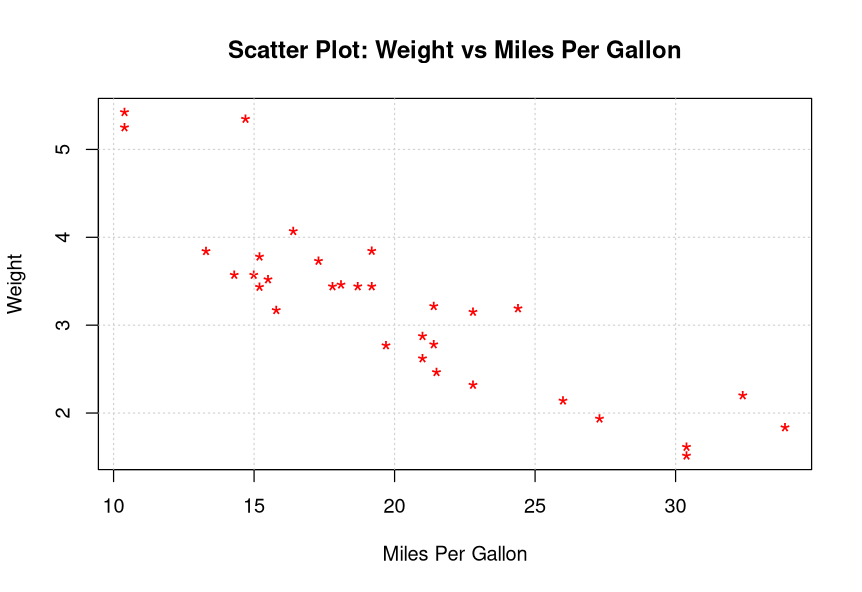
Figure 1: Scatter Plot
Single Line Plot
time_vec  <- 1:10
var1      <- cumsum(rnorm(10))

plot(
  x = time_vec,
  y = var1,
  type = "b",
  col = "darkgreen",
  lwd = 2, # line width
  pch = 16,
  main = "Single Line Plot",
  xlab = "Day",
  ylab = "Value"
)
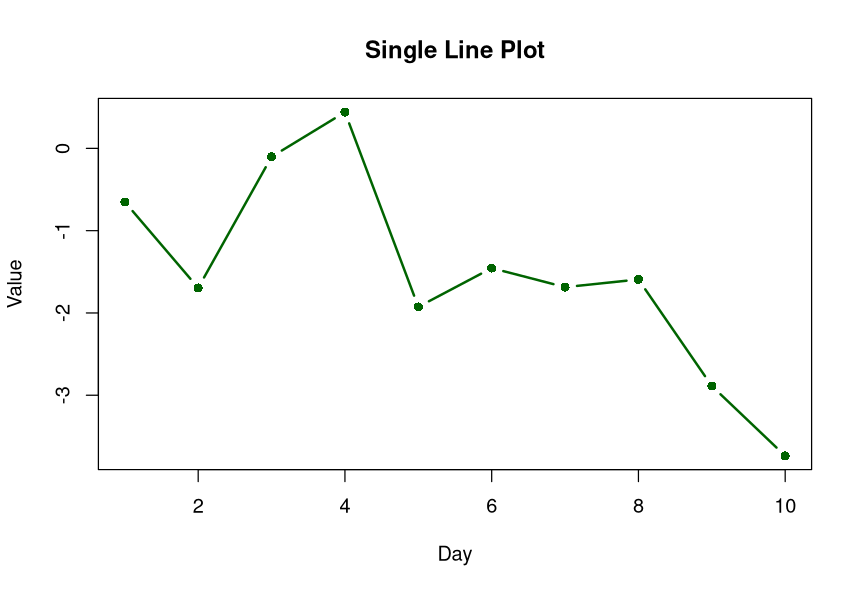
Figure 2: Single Line Plot
Matplot (multiple lines on one set of axes)
time_vec  <- 1:10
var1      <- cumsum(rnorm(10))
var2      <- cumsum(rnorm(10))

mat_bind <- cbind(var1, var2)

matplot(
  x = time_vec,
  y = mat_bind,
  type = "b",
  pch = 1, # point character
  col = c("darkgreen", "darkblue"),
  lty = 1, # line type
  lwd = 2, # line width
  main = "Matplot / Multi-line plot",
  xlab = "Day",
  ylab = "Values",
  # ylim=c(1, 40), # pass a range vector to specify limit
)

legend("topleft", legend = c("Series A", "Series B"), col = c("darkblue", "darkgreen"), pch = 1, lty = 1)
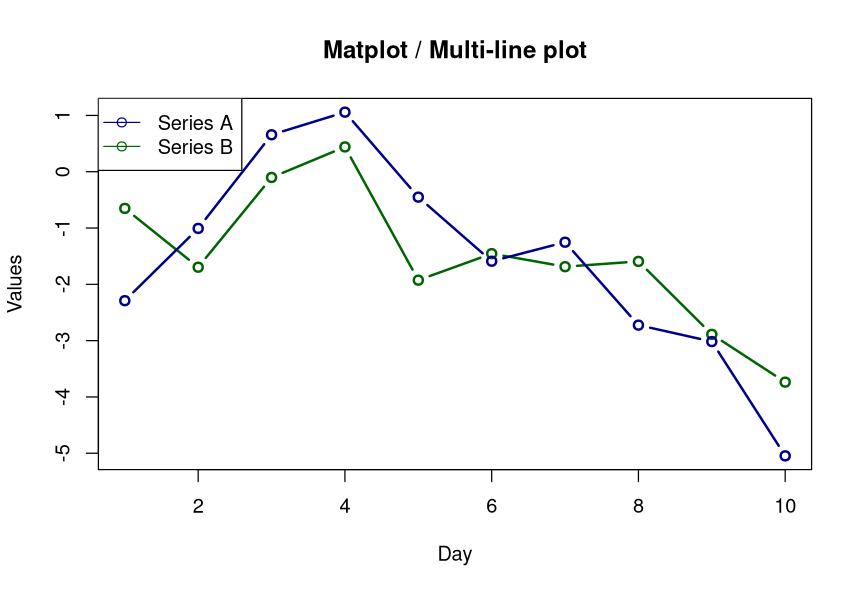
Figure 3: Matplot
Bar Plot
cat_data  <- table(diamonds_sample <- sample(c("Ideal", "Premium", "Good"), 100, replace = TRUE))

barplot(
    cat_data, # height parameter
    main = "Bar Plot: Cut Frequencies",
    xlab = "Cut Quality",
    ylab = "Count",
    col = c("coral", "steelblue", "gold"), # different color for each of three bars
    border = NA, # no borders
    ylim = c(0, 40)
    )
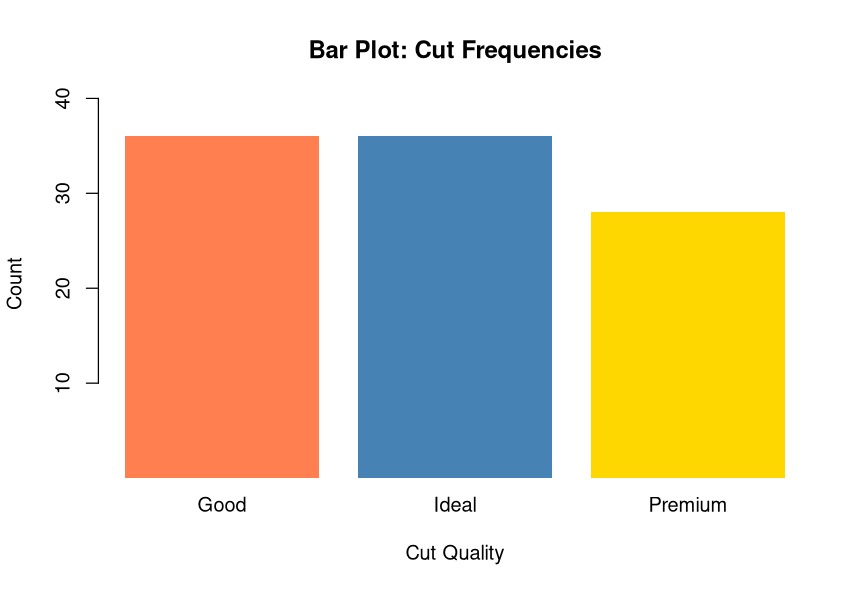
Figure 4: Bar Plot
Pie Plot
cat_data  <- table(diamonds_sample <- sample(c("Ideal", "Premium", "Good"), 100, replace = TRUE))

pie(
  x = cat_data,
  main = "Pie Plot: Quality Distribution",
  col = c("coral", "steelblue", "orange"),
)
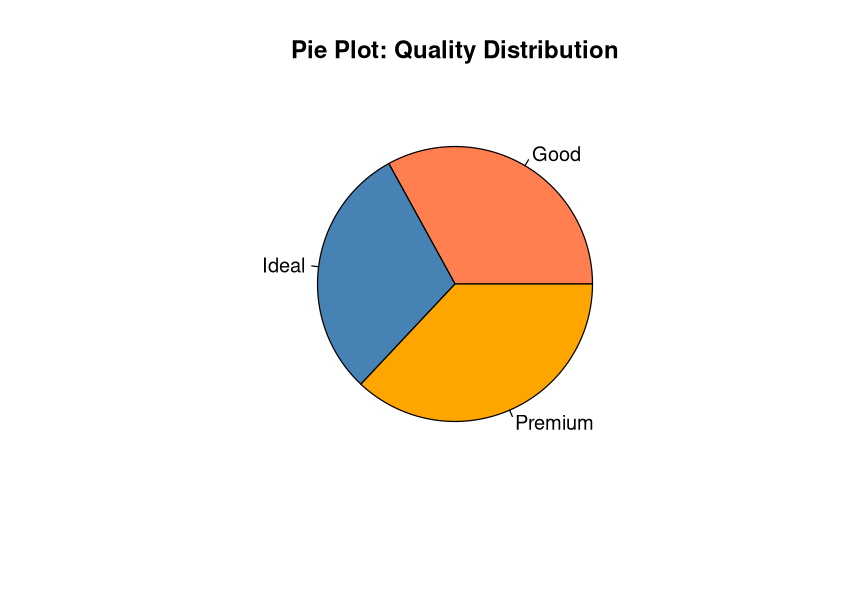
Figure 5: Pie Plot
Histogram
num_data  <- rnorm(150, mean = 50, sd = 10)
hist(
    num_data,
    main = "Histogram of Values",
    xlab = "Measured Value",
    col = "lightblue",
    border = "white",
    )
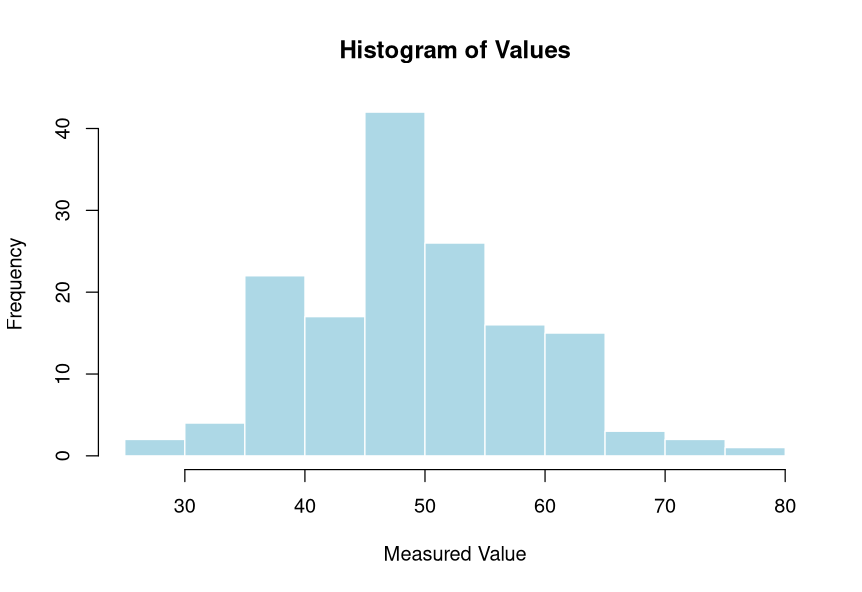
Figure 6: Histogram
Density Plot
d <- density(num_data)
plot(
    d,
    main = "Density Plot",
    xlab = "Value",
    col = "darkred",
    lwd = 2
)
polygon(d, col = rgb(0.8, 0.2, 0.2, 0.3), border = "darkred") # Fills area under curve
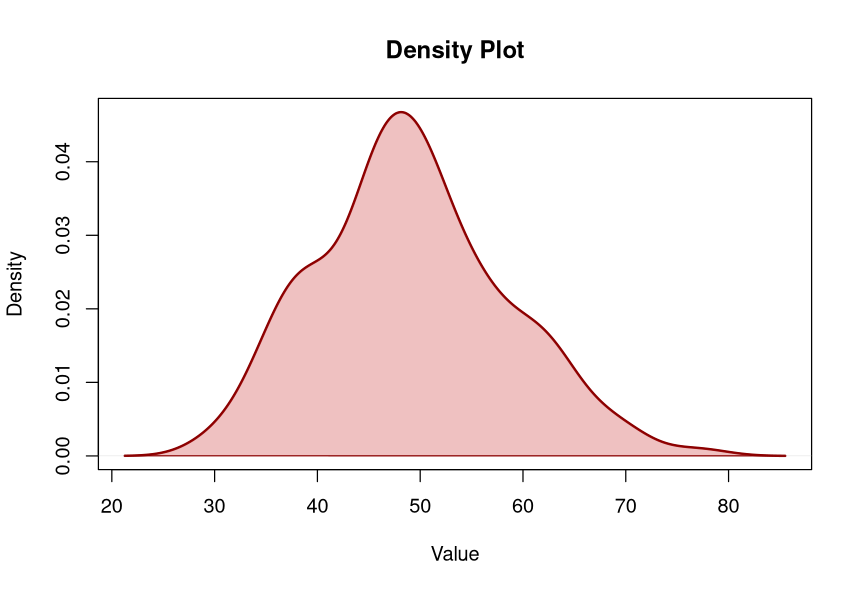
Figure 7: Density Plot
Dot Chart
dotchart(
  mtcars$mpg,
  labels = rownames(mtcars),
  cex = 0.7,
  main = "Dot Plot: Miles Per Gallon",
  xlab = "MPG",
  color = "darkgreen"
)
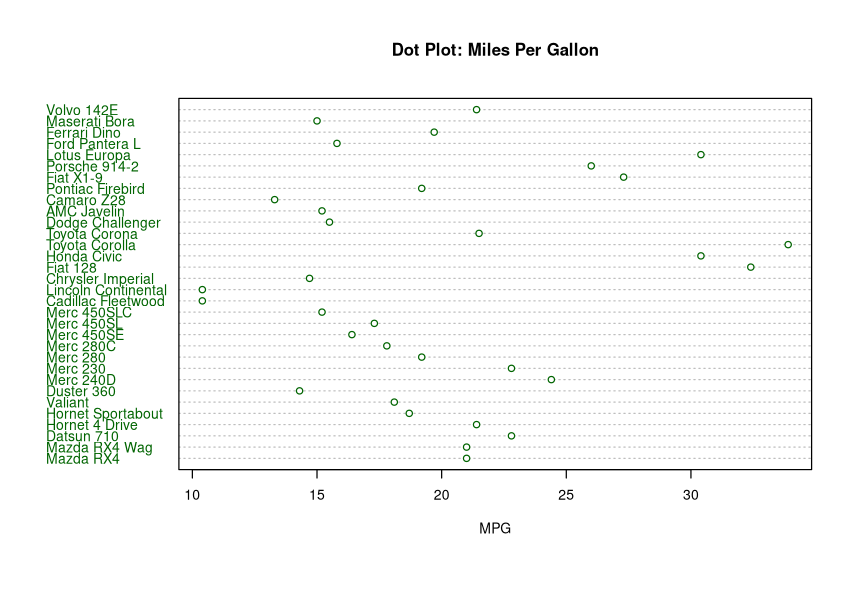
Figure 8: Dot Chart
Venn Diagram
# Sample set sizes
setA <- 1:100
setB <- 50:150
overlap <- length(intersect(setA, setB))

# Plot blank canvas (plain white canvas)
plot(0, 0, type = "n", xlim = c(-3, 3), ylim = c(-3, 3), axes = FALSE, xlab = "", ylab = "", main = "Base R Venn Concept")

# Draw two overlapping circles using symbols()
symbols(x = c(-0.6, 0.6), y = c(0, 0), circles = c(1.2, 1.2), add = TRUE, inches = FALSE, bg = c(rgb(1,0,0,0.3), rgb(0,0,1,0.3)))
# circles diameter is 1.2, and are half immersed into each other (that is 0.6)

# Add set labels
text(x = c(-1.2, 0, 1.2), y = 0, labels = c(length(setA) - overlap, overlap, length(setB) - overlap), font = 2)
# -1.2, 0, 1.2 are three points representing the positions of three numeric values that present sets cardinality

# Add legend
legend("topleft", legend = c("Set A", "Set B"), fill = c(rgb(1,0,0,0.5), rgb(0,0,1,0.5)))
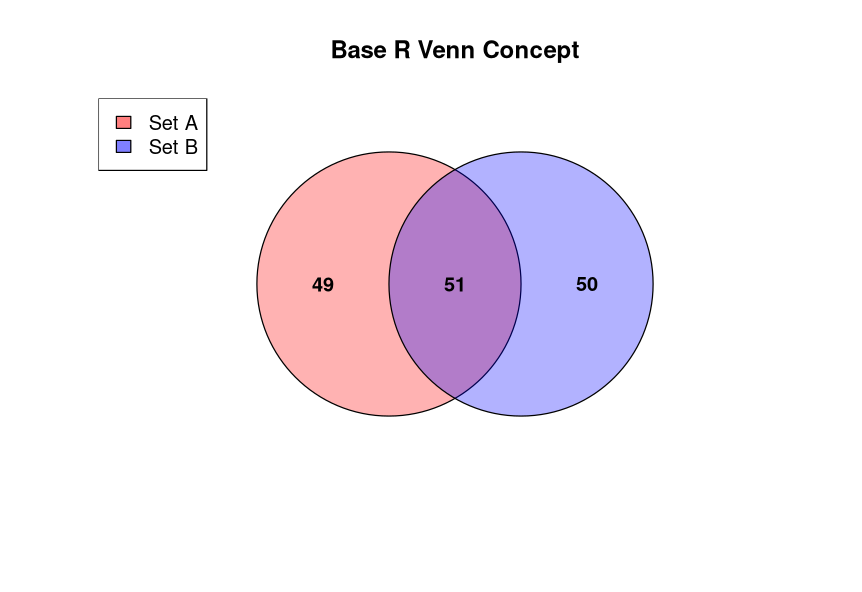
Figure 9: Venn Diagram
Help
help.start()loads the R documentation in html- If you use
help()it will look for the item’s help page. If it doesn’t encounter any conflicts, then it will just present the man page otherwise it will show the search results - Alternatively you can use
help.search("crayon")or??crayon1 to search for man pages, instead of directly loading the relevant one example("crayon")1 will return an example usage of the topic
?mpg # returns info about mpg dataset
help(mpg) # alternative way

?View() # returns info about View() function
FAQ
Rstudio
shortcuts
C-RETURN- Run the code (runs the current line in console)C-l- clear console